Your smart TV phones home more than you think. Your doorbell camera chats with servers you’ve never heard of. Your kids’ tablets bounce across public DNS servers like pinballs. You could install a VPN on every device… or you could be smarter and do it once, at the source.
This guide shows you how to install and configure a VPN on your home router—cleanly, safely, and without the usual techno-babble. You’ll understand why each step matters, not just which button to click. By the end, your entire network runs through encrypted tunnels, quietly doing its job while you get on with life.
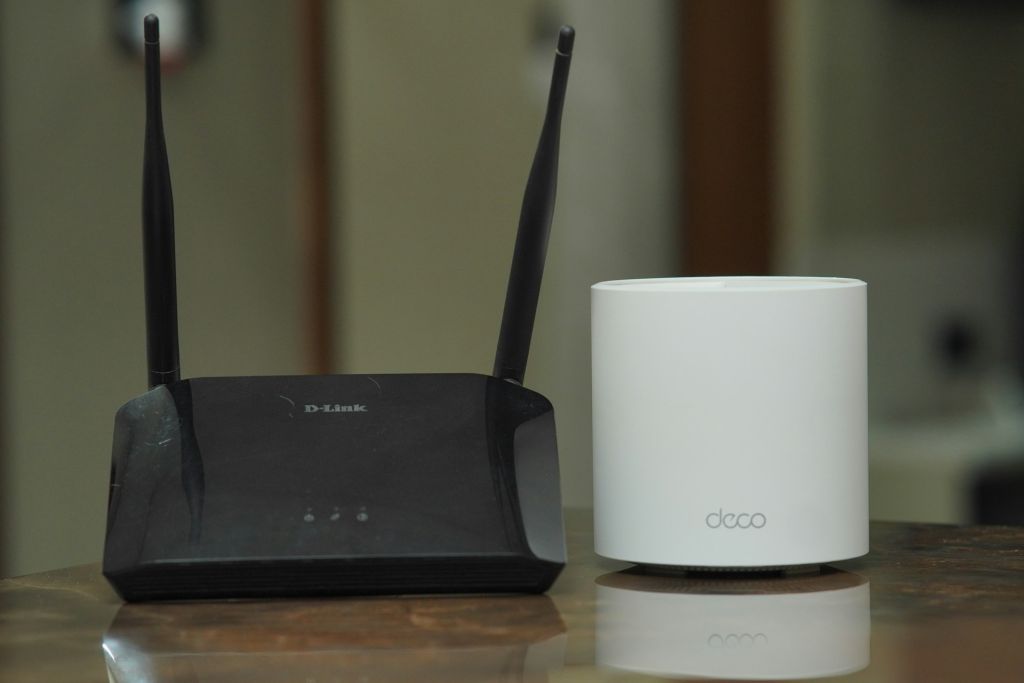
Image Credit: Unsplash under Creative Commons
Why Put a VPN on Your Router Instead of Individual Devices?
Let’s clear this up first, because this decision shapes everything that follows.
When you install a VPN app on a phone or laptop, only that device is protected. The moment you switch to a smart TV, a game console, or a Wi-Fi speaker, you’re back in the open. Routers don’t forget. They don’t “disconnect.” They don’t get lazy.
A router-level VPN means:
-
Every connected device is protected automatically
-
No per-device app limits
-
Always-on encryption (no “Oops, forgot to turn it on” moments)
-
Centralized control from one dashboard
-
Better privacy for IoT devices that can’t run VPN apps
Downsides? Sure, there are a few. Router CPUs are weaker than laptops. Misconfiguration can slow speeds. Geo-unblocking can get tricky if you want different locations per device.
Still, for privacy-first households, it’s hard to beat.
Before You Start: What You’ll Need (Don’t Skip This)
This is where most guides hand-wave. I won’t.
1. A VPN Provider That Supports Routers
Not all VPNs play nicely with routers. You need one that offers:
-
OpenVPN or WireGuard configuration files
-
No bandwidth caps
-
Good server distribution
-
Solid documentation
If a VPN only advertises “one-click mobile apps,” walk away.
2. A Compatible Router (This Is Crucial)
Routers fall into three camps:
A. Native VPN Support
Some routers support VPN clients out of the box.
-
Asus (many models with AsusWRT)
-
GL.iNet
-
Some Netgear models
B. Flashable Routers (Custom Firmware)
Others need third-party firmware like:
-
DD-WRT
-
OpenWRT
-
Tomato
C. ISP-Locked Routers (Usually a Dead End)
If your ISP router doesn’t allow firmware changes or VPN clients, you’ll need a second router behind it.
3. Admin Access to Your Router
Sounds obvious. You’d be surprised.
You’ll need:
-
Router IP (often
192.168.1.1) -
Admin username/password
If you don’t have those, stop here and fix that first.
Step 1: Check If Your Router Can Run a VPN Client
Before touching firmware or downloading files, confirm compatibility.
How to Check Quickly
-
Look up your router model number
-
Search:
“[Router Model] VPN client support” -
Check:
-
Official manufacturer docs
-
DD-WRT or OpenWRT device databases
-
VPN provider compatibility lists
-
If your router can’t run a VPN client, don’t force it. That road ends in frustration and paperweights.
Step 2: Decide Between Stock Firmware and Custom Firmware
This is a fork in the road.
Option A: Use Stock Firmware (Simpler, Safer)
If your router already supports VPN clients:
-
Fewer risks
-
Easier updates
-
Manufacturer stability
Downside: fewer advanced controls.
Option B: Flash Custom Firmware (Powerful, Riskier)
Custom firmware unlocks:
-
Policy-based routing
-
Advanced firewall rules
-
Better performance tuning
But flashing firmware carries risk. I’ve personally bricked a router at 1 a.m. before a workday. That lesson sticks.
Rule of thumb:
If you’re not comfortable recovering a router via TFTP or serial console, stick with stock firmware.
Step 3: Get Your VPN Configuration Files
Your VPN provider should offer downloadable files.
You’re usually looking for:
-
.ovpnfiles (OpenVPN) -
Or WireGuard configs (
.conf) -
Username/password or certificate-based authentication
Download configs for:
-
One nearby server (best speed)
-
One alternate location (backup)
Label them clearly. Future you will appreciate it.
Step 4: Log Into Your Router Dashboard
Open a browser and type your router’s IP address.
Once inside, look for sections like:
-
VPN
-
WAN Settings
-
Advanced
-
Services
Router interfaces vary wildly. Some look polished. Others feel like they time-traveled from 2006. Don’t panic.
Step 5: Configure the VPN Client (OpenVPN Example)
Let’s walk through the most common scenario: OpenVPN on a router.
Upload the Configuration File
-
Find VPN Client or OpenVPN Client
-
Upload your
.ovpnfile -
Enter your VPN username/password if required
Key Settings to Double-Check
These matter more than you think:
-
Protocol: UDP (faster) unless blocked
-
Encryption: AES-256-GCM or similar
-
NAT: Enabled
-
Redirect Internet Traffic: Enabled
-
DNS Handling: Use VPN DNS, not ISP DNS
If your router supports it, enable “Block traffic if VPN disconnects.” That’s your kill switch.
Step 6: Set DNS Correctly (This Is Where Privacy Often Leaks)
VPN tunnel active, but DNS still points to your ISP? That’s a leak.
Best Practice DNS Setup
-
Use your VPN provider’s DNS servers
-
Or privacy-focused DNS like:
-
Quad9
-
Cloudflare (with DNS over HTTPS if supported)
-
Avoid “Automatic” unless you enjoy guessing games.
Step 7: Test the Connection (Don’t Assume It Works)
Once connected:
-
Visit an IP-check website
-
Confirm:
-
IP location matches VPN server
-
DNS servers are not ISP-owned
-
-
Restart the router and test again
I once spent 30 minutes celebrating a “successful” setup—only to realize traffic bypassed the tunnel after reboot. Always reboot.
Step 8: Optimize Performance (Routers Aren’t Supercomputers)
Router VPN performance depends on CPU power.
Speed Optimization Tips
-
Use WireGuard if supported (lighter, faster)
-
Choose geographically closer servers
-
Disable unused router services
-
Lower encryption slightly if speed is critical (within reason)
If speeds crawl, your router may simply be underpowered. No shame in upgrading.
Step 9: Policy-Based Routing (Optional but Powerful)
Want some devices on the VPN and others not?
Policy-based routing lets you:
-
Route smart TVs outside the VPN for streaming
-
Keep work laptops fully tunneled
-
Exclude local devices like printers
This feature shines on DD-WRT and OpenWRT routers.
A Quick Personal Scenario (Because This Stuff Gets Real)
A friend once asked why his Netflix kept showing the wrong country. Turns out his router VPN was forcing everything through a foreign server—including his wife’s work laptop that required a local IP.
Solution? Policy-based routing. Two minutes of configuration saved a marriage-level argument. True story.
Common Mistakes That Break Router VPN Setups
Avoid these, and you’re already ahead of most tutorials.
-
Using ISP DNS with a VPN tunnel
-
Forgetting to enable NAT
-
Uploading mobile-only config files
-
Flashing firmware without verifying hardware revisions
-
Expecting gigabit speeds from a budget router
Routers have limits. Respect them.
Security Hardening Tips (Worth the Extra Five Minutes)
Once your VPN works, lock things down.
-
Change router admin password
-
Disable remote management
-
Update firmware
-
Back up your router config
If your router supports it, enable firewall logging. Silence isn’t always golden.
FAQ: Router VPNs, Answered Honestly
Does a VPN on my router slow down the internet?
Usually, yes—but how much depends on your router’s CPU and the VPN protocol. Modern routers with WireGuard often see minimal drops.
Can I use streaming services with a router VPN?
You can, but some services block VPN IPs. Policy-based routing helps here by excluding specific devices.
Is it legal to run a VPN on a router?
In most countries, yes. Always check local regulations if you live in a restricted region.
What if my router doesn’t support VPNs at all?
Use a second router behind your ISP router or upgrade to a VPN-capable model.
Key Takeaways (Read This If You Skimmed)
-
Router-level VPNs protect every device automatically
-
Compatibility matters more than brand names
-
DNS configuration is non-negotiable
-
Performance depends on router hardware
-
Policy-based routing adds flexibility
-
Testing after reboot saves headaches
Final Thought
Installing a VPN on your router isn’t about paranoia. It’s about control. One setup. One tunnel. One quiet layer of protection humming along while your devices do their thing.
If your entire digital life flows through that little plastic box in the corner, shouldn’t it be locked down properly?
If you’re ready, start with checking your router model today. The rest is just execution.