
Private browsing on iPhone, in one tap
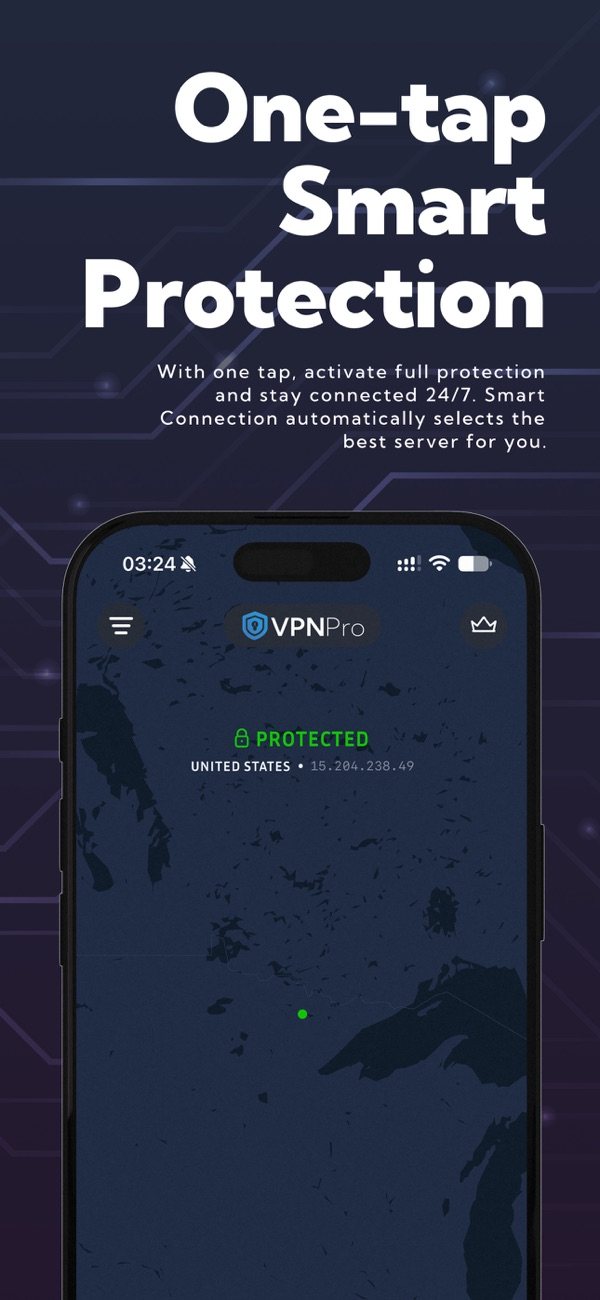
VPN Pro adds an encrypted connection between your iPhone or iPad and a VPN server. Open the app, tap the power button, and Smart Connect picks a suitable server for you.
- AES-256 encryption with the IKEv2/IPsec protocol
- An ad-supported free plan, with Premium when you want more
- One app for both iPhone and iPad
What you need
Not sure which version you have? Open Settings > General > About and look at the iOS or iPadOS version line.
How to install VPN Pro on iPhone or iPad
- Open VPN Pro on the App Store and tap Get. Confirm with Face ID, Touch ID or your Apple Account password.
- Open VPN Pro and follow the setup prompts.
- Tap the power button. The first time, iOS asks whether VPN Pro may add VPN configurations. Tap Allow and confirm with your passcode, Face ID or Touch ID.
- Pick a location in the server picker, or leave Smart Connect on to let the app choose.
- When the app shows Protected, your connection is running through the VPN.
The one permission iOS asks for
VPN Pro needs a single system permission on iPhone and iPad: adding a VPN configuration. iOS shows this prompt for every VPN app, because the app has to create the VPN connection in your device settings. Without it the app cannot connect.
You can see or remove the configuration at any time in Settings > General > VPN & Device Management > VPN. Deleting the app removes it too.
What the iPhone and iPad app can do
Smart Connect
Selects a server for you automatically.
Kill Switch
Blocks internet traffic if the VPN connection drops, until it is back.
Always On VPN
Helps keep the connection up through the day.
Server Health indicator
Shows which servers are performing well.
Favorites
Keep the locations you use most one tap away.
Auto Ping and session time
Show how responsive the connection is and how long you have been connected.
The app also has Sign in with Apple, Dark Mode and iPad support. Version 2.0 brought a new main screen with a map, a new server picker, and redesigned menu and settings. The iOS release notes list every change.
Free and Premium on iPhone
| Plan | Free | Premium |
|---|---|---|
| Ads | Ad-supported | No ads |
| Locations | Limited locations | 30+ locations |
| Connections | 1 | 10 |
Managing your subscription
A Premium subscription bought in the app is billed through your Apple Account and renews automatically unless you cancel at least 24 hours before the period ends.
To manage or cancel it, open Settings, tap your name, then Subscriptions.
Troubleshooting on iPhone and iPad
The app will not connect
Check that your internet works with the VPN off. Then try another location or switch Smart Connect on. If it still fails, turn Airplane Mode on and off, or restart the device.
I tapped "Don't Allow" on the VPN prompt
Tap the power button again and choose Allow when iOS asks. The app cannot connect without the VPN configuration.
The internet stops when the VPN is off
This is the Kill Switch doing its job. Reconnect the VPN, or turn Kill Switch off in the app settings.
The connection feels slow
Choose a location closer to you and check the Server Health indicator. Encryption, distance to the server and a busy network can all affect speed.
I also use another VPN app
iOS keeps one VPN configuration active at a time. Connecting in VPN Pro switches to it. You can also select it in Settings > General > VPN & Device Management > VPN.
Something else
Update VPN Pro in the App Store first. If the problem continues, contact support and include your device model and iOS version. The FAQ covers more general questions.